37 Combine 3D with text and slides
The previous chapter produced a Scene named lesson. A 3D view can share that Scene with ordinary text, formulas, and other 2D Visuals. This chapter first adds text, then shows the optional slide route.
The documentation evaluator reconstructs the earlier Scene privately and keeps all live 3D rendering on the software backend.
37.1 Choose what a label follows
A heading placed in the surrounding Scene stays still when the 3D camera moves. A projected label instead follows a point seen through the 3D view. It is still ordinary 2D text, so its letters stay upright and readable.
Here the heading stays above the window, while "Box" follows the box’s origin. First the box moves to the side for two seconds. The six-second turn-and-orbit sequence follows, making eight seconds in all.
The view is supplied separately to follow-projected-spatial, so this helper’s #:target is the path '(brick) within that view. That differs from the full '(model brick) path used by a motion request.
(define heading (plain-text "Turn the object, then move the camera" #:id 'heading #:center (vec2 0 10/3) #:font-size 9/25 #:color "navy")) (define box-label (follow-projected-spatial (plain-text "Box" #:id 'box-label #:font-size 1/4 #:color "navy") #:view 'model #:target '(brick) #:offset (vec2 14 16))) (define labelled-move (scene-play (scene-add still heading box-label) (move3d-to '(model brick) (vec3 1 0 0)) #:duration 2)) (define captioned-lesson (make-lesson labelled-move))
The complete captioned sequence lasts eight seconds:
> (scene-duration captioned-lesson) 8
> (scene->pict captioned-lesson 1)
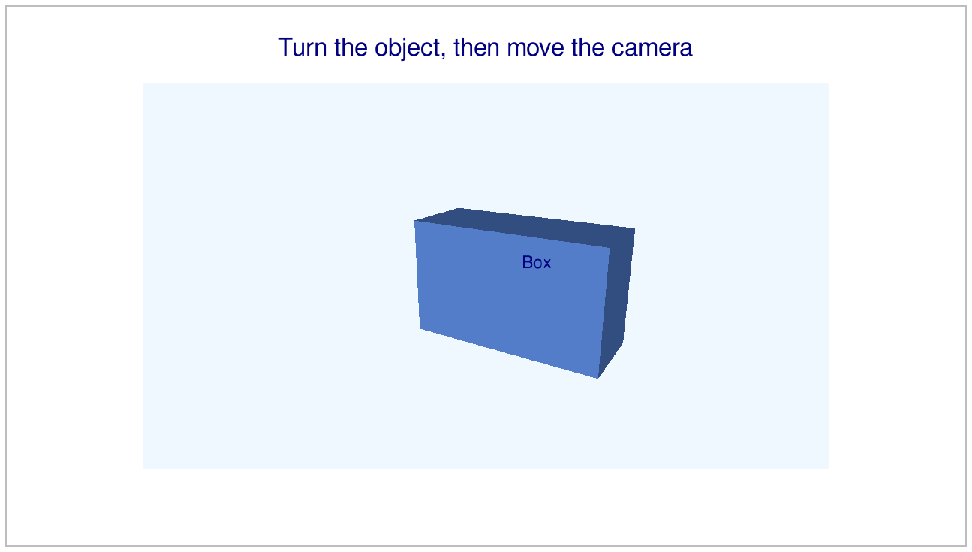
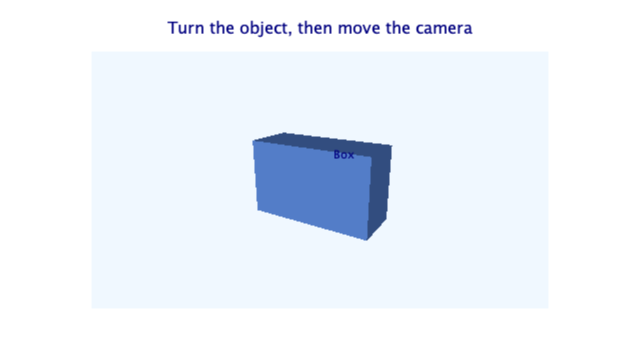 t = 0 s
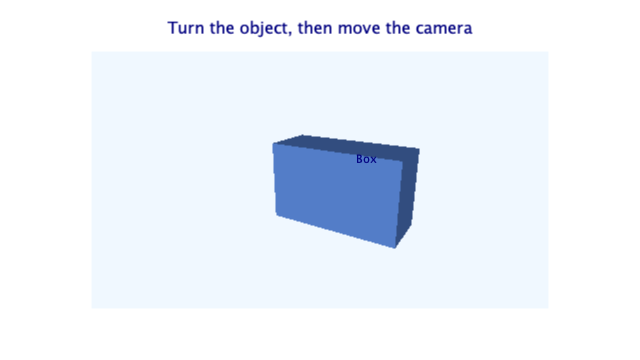 t = 1 s
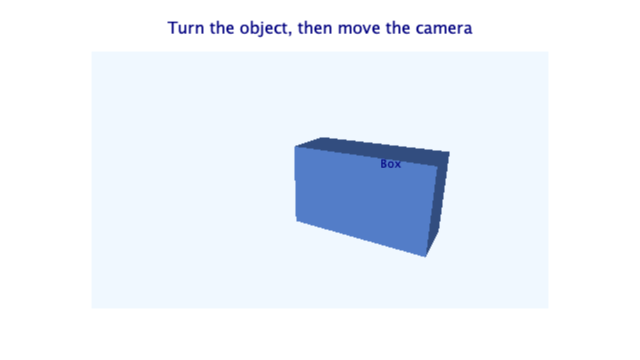 t = 2 s
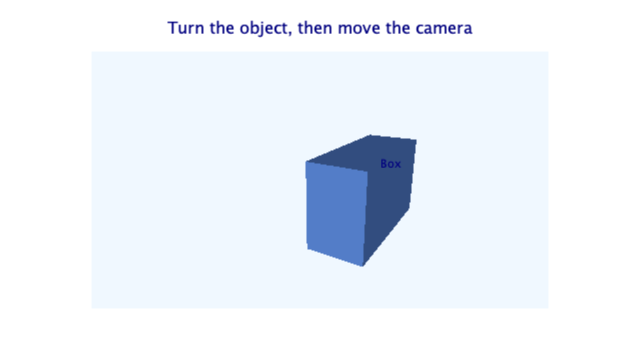 t = 5 s
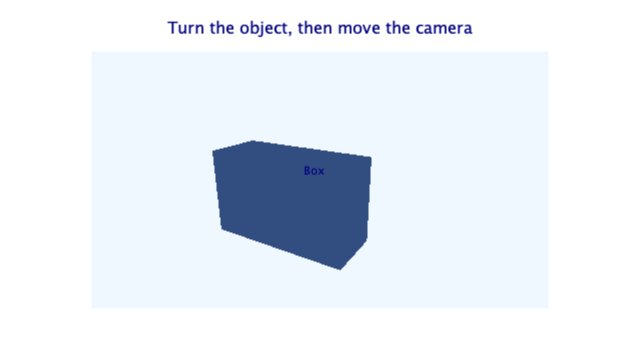 t = 8 s
Frames sampled directly from this example; times are in seconds.
The label’s offset is measured in screen pixels. Its text size is still an ordinary 2D text size. The default label policy keeps it visible; it does not promise to hide text behind the box. The Reference describes explicit occlusion and placement options.
The complete standalone source is "scribblings/examples/spatial-slides.rkt".
37.2 Put the animation in a slide
This section uses layouts, beats, and the local content clock from Make a slide and give it time and Put an animation inside a slide. Readers who came straight from the Quick Start can stop here and return after those chapters.
Wrap the existing Scene with scene-content. Do not use geometry-content: that adapter is for the separate Euclidean construction library, not for every kind of geometry or every 3D object.
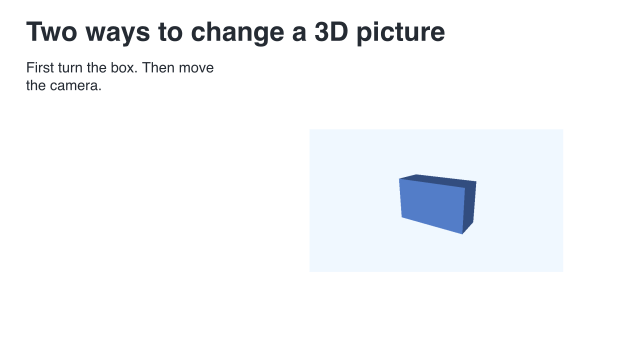
(define card (slide #:id 'spatial-lesson #:layout 'title+figure [title "Two ways to change a 3D picture"] [figure (scene-content lesson)] [body "First turn the box. Then move the camera."])) (define clip (build-slide card (beat 'look #:duration 1) (beat 'play #:duration 6 (play-content 'figure #:to 'end)) (beat 'read #:duration 2))) (define film (storyboard (storyboard-shot 'demonstration clip)))
The slide holds the initial picture for one second. Its play beat advances the embedded Scene’s six-second clock. The last beat holds the final picture for two seconds. The total is nine seconds:
> (scene-duration (storyboard->scene film)) 9
> (storyboard->pict film #:at 4)
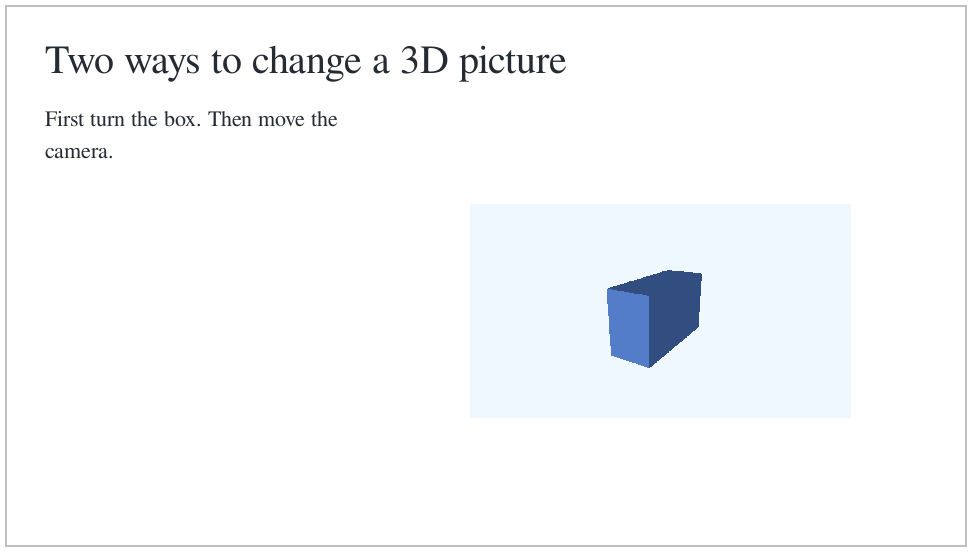
 t = 0 s
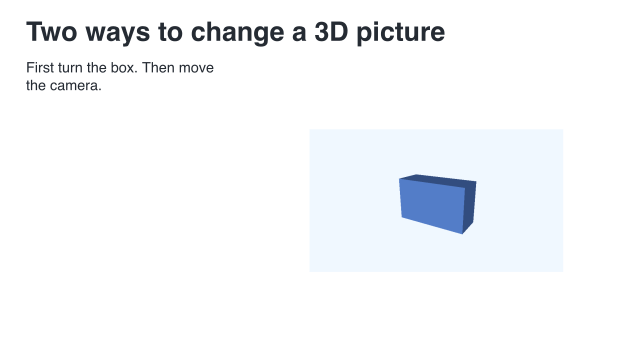 t = 1 s
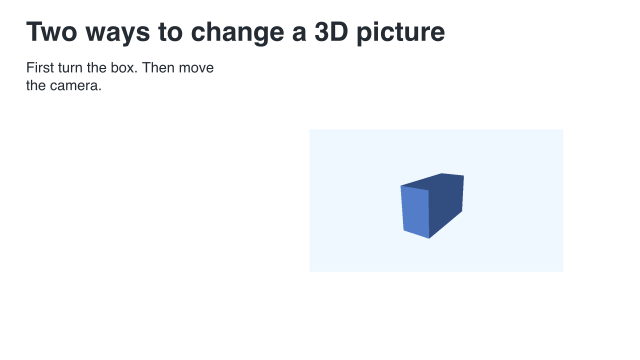 t = 4 s
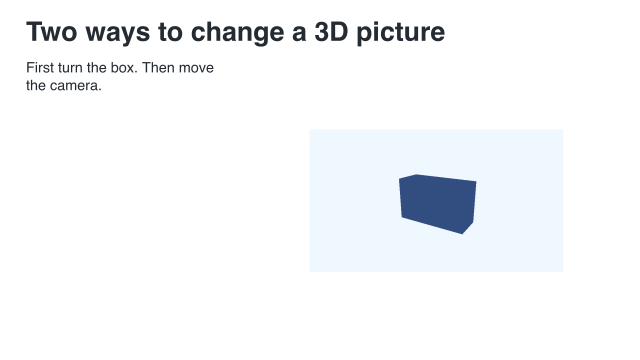 t = 7 s
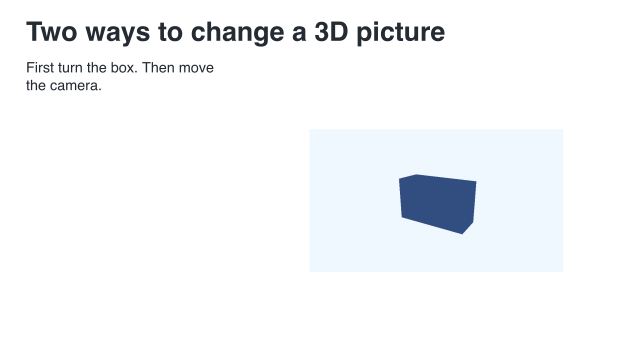 t = 9 s
Frames sampled directly from this example; times are in seconds.
Adding a hold to the slide does not add a second moving clock to the 3D view. For this embedding we use the uncaptioned lesson. The slide supplies its own title, so we do not place a second native title inside the figure region.
37.3 Choose the next topic when you need it
The 3D reference map separates solids, materials, cameras, curves, surfaces, relations, mesh operations, numerical flow, picking, and rendering internals. None of the mesh-topology or renderer-protocol chapters is a prerequisite for the examples above.
3D objects and cameras collects the complete source programs and short answers to common placement and camera questions.