28 Control time and visibility
This chapter compares animations built from the same starting Scene. They are alternatives, not changes you should paste into one timeline in order. The examples are evaluated while the manual is built. A complete standalone version is "scribblings/examples/timing-and-visibility.rkt".
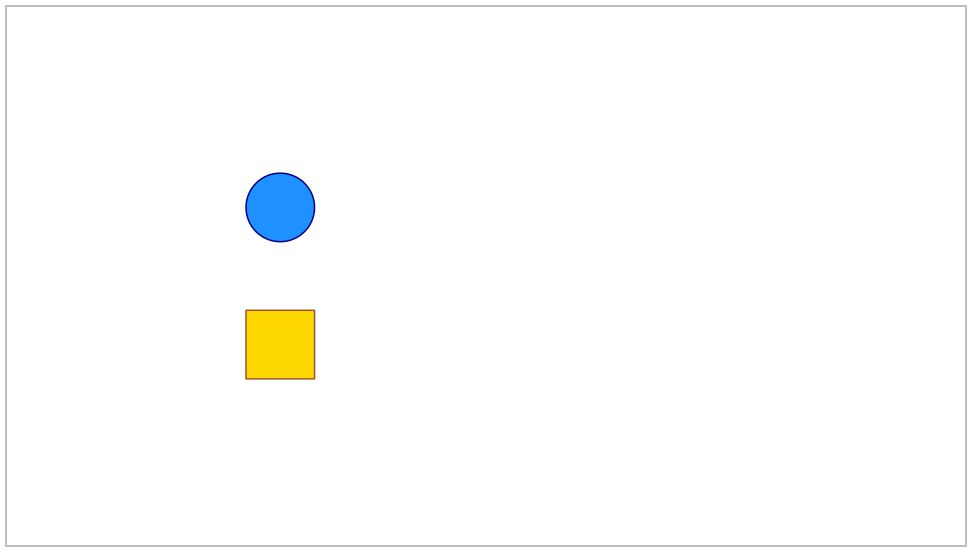
Start with two Visuals and one Scene:
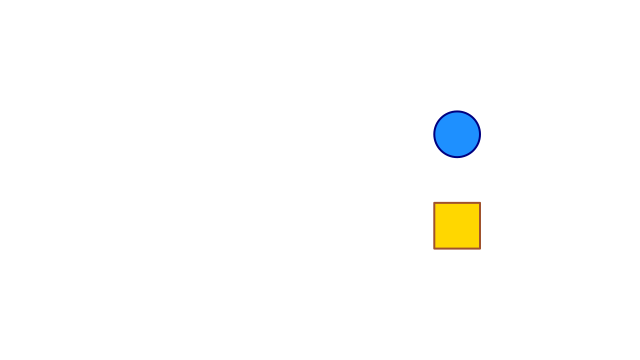
(require animate) (define dot (circle #:id 'dot #:center (vec2 -3 1) #:radius 1/2 #:fill "dodgerblue" #:stroke "navy")) (define tile (rectangle #:id 'tile #:center (vec2 -3 -1) #:width 1 #:height 1 #:fill "gold" #:stroke "sienna")) (define initial (scene-add (make-scene) dot tile))
Before comparing schedules, look at the common starting state:
> (scene->pict initial 0)
28.1 Start two movements together
Requests in one ordinary scene-play run together. Both objects below move for two seconds. The Scene lasts two seconds, not four.
(define together (scene-play initial (move-to 'dot (vec2 3 1)) (move-to 'tile (vec2 3 -1)) #:duration 2))
> (scene-duration together) 2
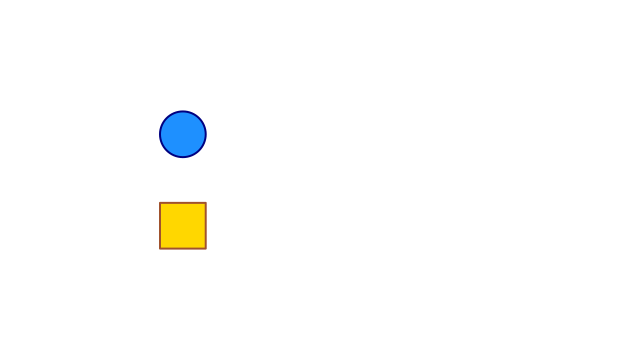 t = 0 s
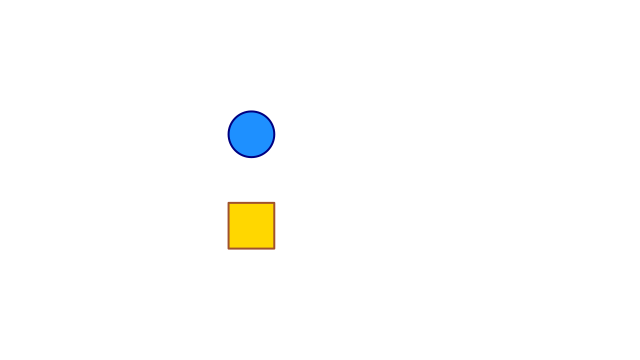 t = 1/2 s
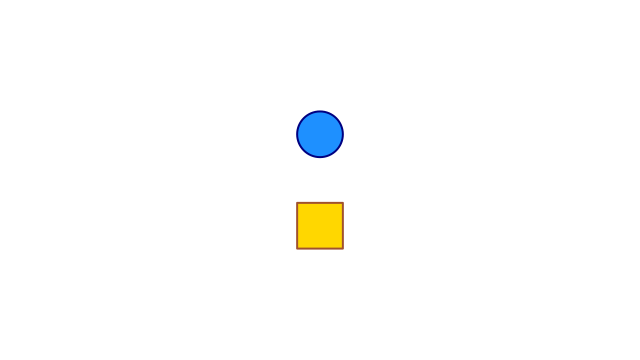 t = 1 s
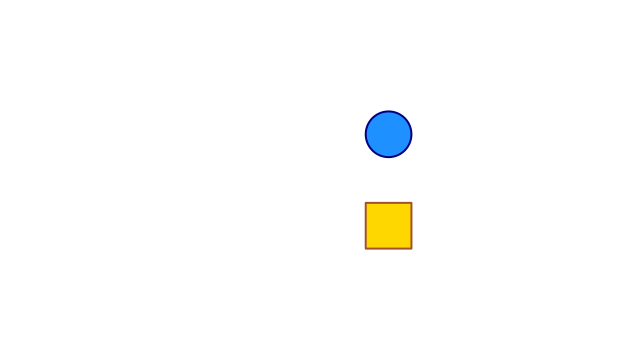 t = 3/2 s
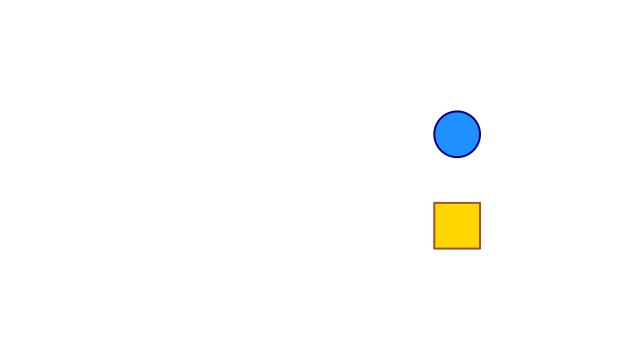 t = 2 s
Both objects start and finish together.
28.2 Run one movement after another
Pass the result of the first scene-play to the second. Each call appends a new interval. Here the circle moves for one second; then the square moves for one second. The total is again two seconds, but the picture tells a different story.
(define first-move (scene-play initial (move-to 'dot (vec2 3 1)) #:duration 1)) (define in-order (scene-play first-move (move-to 'tile (vec2 3 -1)) #:duration 1))
> (scene-duration in-order) 2
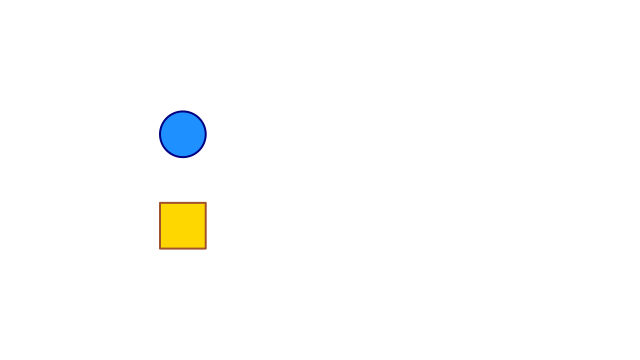 t = 0 s
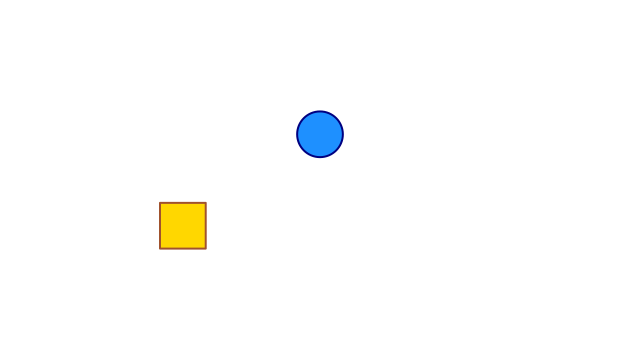 t = 1/2 s
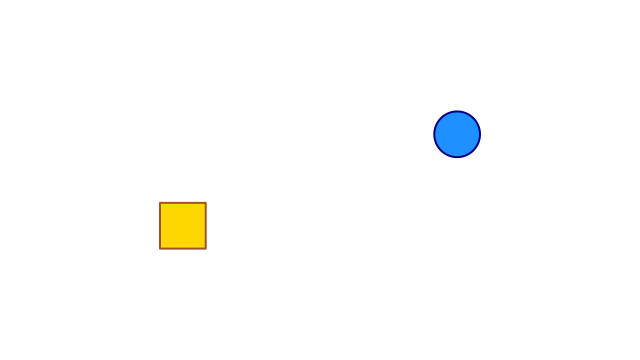 t = 1 s
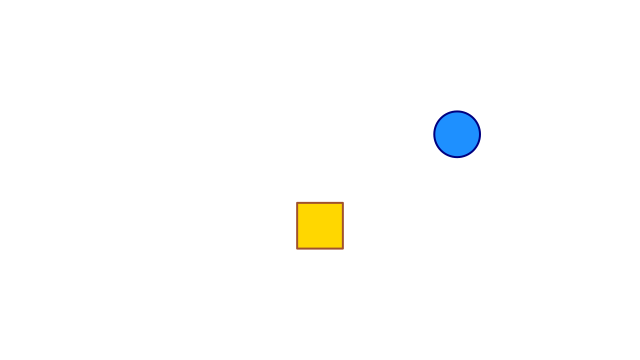 t = 3/2 s
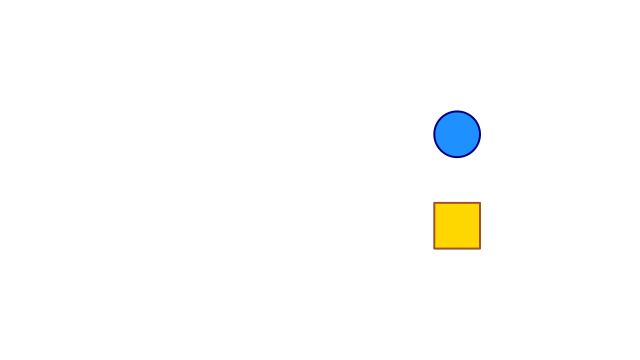 t = 2 s
The circle finishes before the square starts.
Two separate calls both starting from initial would create two alternative Scenes. They would not join automatically. Return values connect the timeline.
28.3 Delay the second start
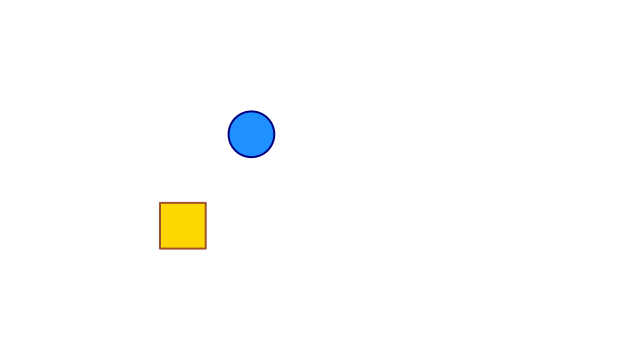
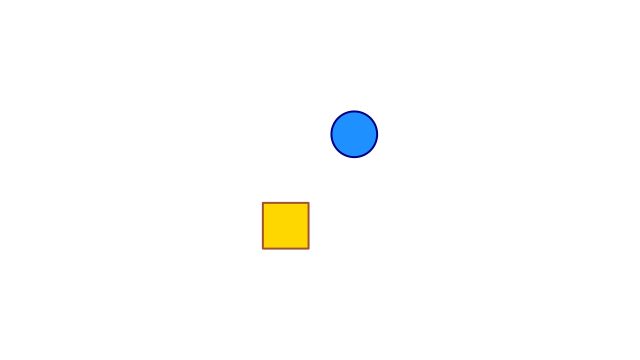
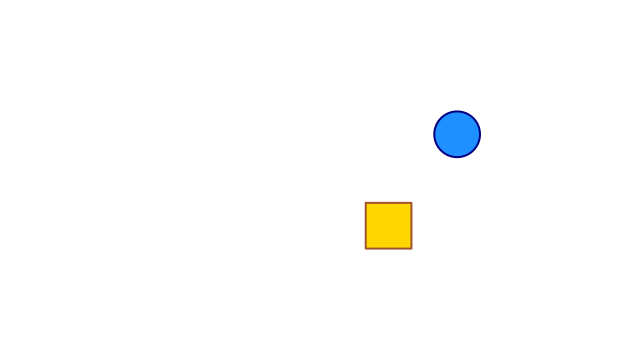
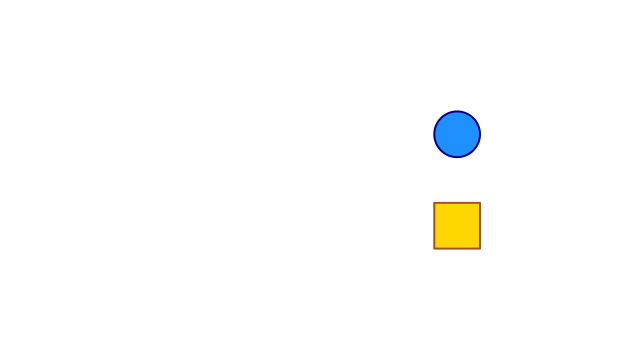
A timed wrapper gives a request its own start and duration. Used directly inside scene-play, its start is measured from that call’s play interval, not from the beginning of the whole video. Both requests must finish within the enclosing duration.
(define overlapping (scene-play initial (timed (move-to 'dot (vec2 3 1)) #:start 0 #:duration 2) (timed (move-to 'tile (vec2 3 -1)) #:start 1/2 #:duration 2) #:duration 5/2))
> (scene-duration overlapping) 5/2
Object |
| Starts |
| Finishes |
Circle |
| 0 s |
| 2 s |
Square |
| 0.5 s |
| 2.5 s |
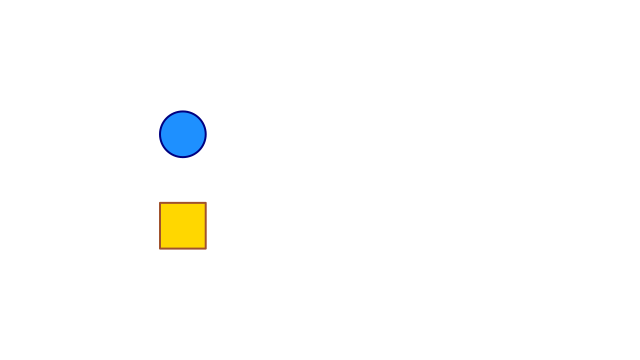 t = 0 s
 t = 1/2 s
 t = 5/4 s
 t = 2 s
 t = 5/2 s
The square waits half a second. Each movement lasts two seconds.
The last finish is 2.5 seconds, so the outer duration is 5/2. Exact fractions are useful here: 1/2 means precisely half a second. A later play interval may use another #:start 0; that means its own start.
Try changing the square’s start to one second. Increase the outer duration to three seconds too. The circle still finishes at two seconds; the square finishes at three. Changing only the delay would put its endpoint outside the old interval.
More compact composition tools include succession, animation-group, and lagged-start. They are not needed for this example. Their allocation rules are in Animation requests; in particular, timing nested inside a composition can be scaled to the enclosing interval. Do not assume that the direct timed example describes every nested case.
28.4 Change the speed, not the schedule
An easing function maps elapsed progress to movement progress. Halfway through a two-second interval, elapsed progress is 1/2. Without an explicit choice, these movements use constant-speed linear. (smooth) makes them start and finish gently without changing the duration.
(define eased (scene-play initial (move-to 'dot (vec2 3 1)) (move-to 'tile (vec2 3 -1)) #:duration 2 #:easing (smooth)))
> (scene-duration eased) 2
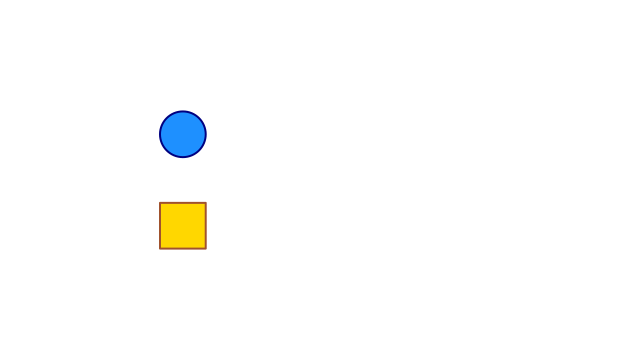 t = 0 s
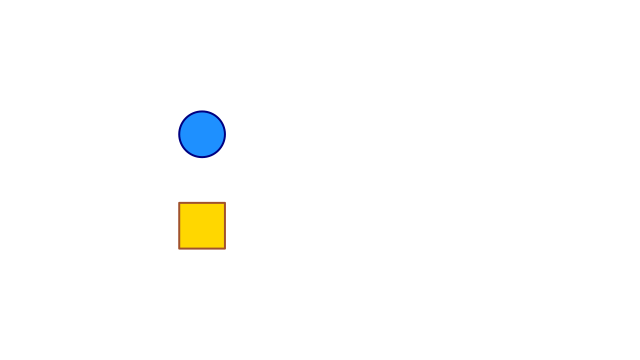 t = 1/2 s
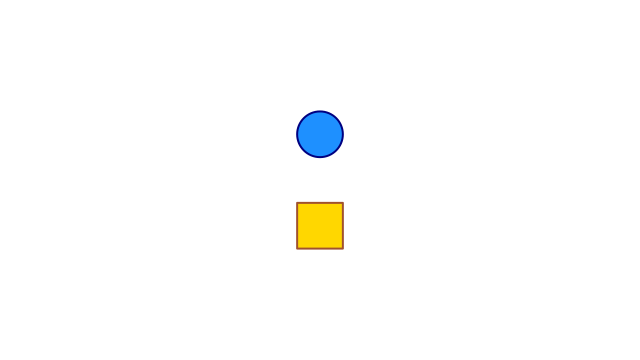 t = 1 s
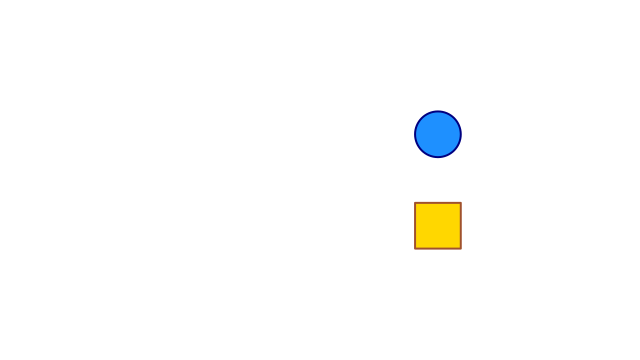 t = 3/2 s
 t = 2 s
Equal time steps cover less distance near the start and finish.
These sample times are the same as in the first strip. Compare the distance travelled during the first half-second. The middle and final positions agree; the positions between them need not. Write (smooth), with parentheses: it constructs the callable rate value that scene-play expects. The slide API later uses a different spelling, a named choice such as 'smooth.
28.5 Introduce an object
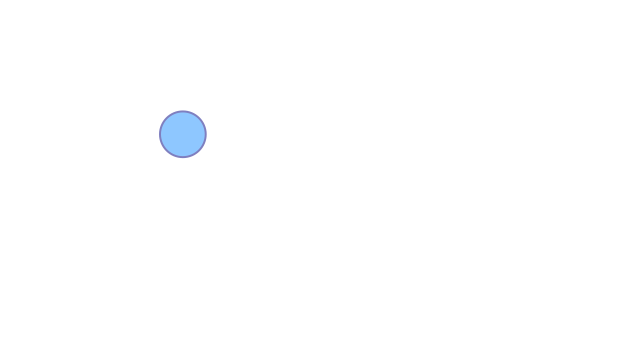
Opacity controls how visible an object is: zero is transparent, one is fully visible. Presence says whether the object exists in the scene state at all. These are different questions.
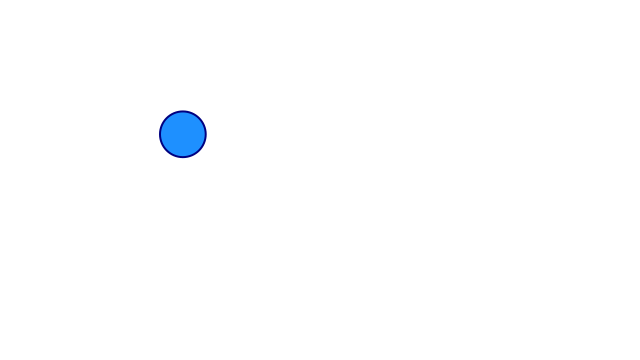
fade-in introduces an absent object. Start with an empty Scene; do not add dot with scene-add first.
(define appearing (scene-play (make-scene) (fade-in dot) #:duration 1))
 t = 0 s
 t = 1/2 s
 t = 1 s
The circle is introduced by fading in.
The final state really contains the introduced object:
> (scene-state-has? (scene-sample appearing 1) 'dot) #t
28.6 Hide an object, or remove it
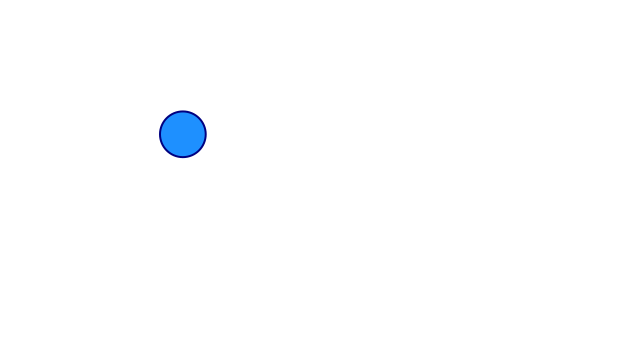
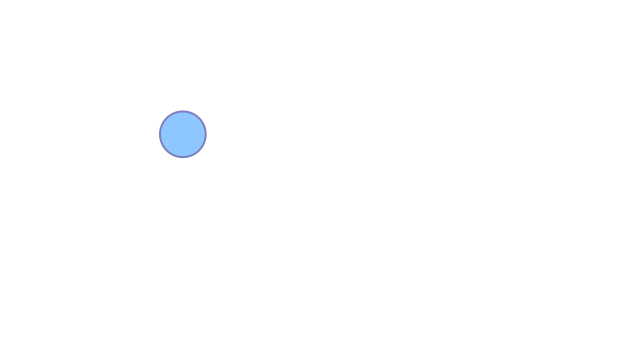
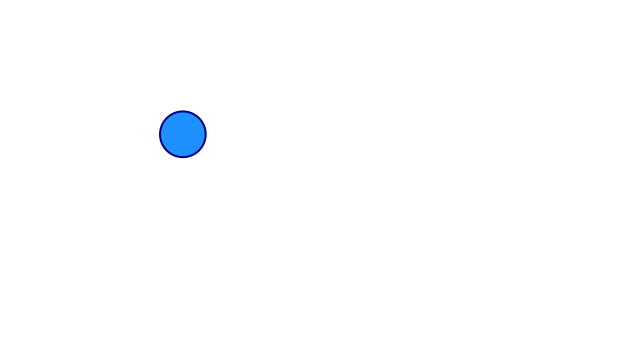
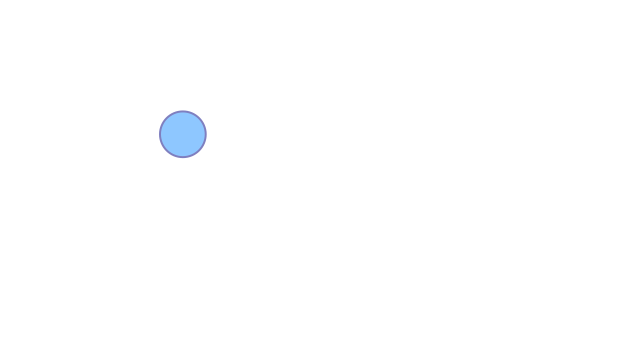
fade-to changes opacity but keeps the object present. fade-out changes opacity and removes the object at the end of the interval.
(define invisible (scene-play (scene-add (make-scene) dot) (fade-to 'dot 0) #:duration 1)) (define removed (scene-play (scene-add (make-scene) dot) (fade-out 'dot) #:duration 1))
 t = 0 s
 t = 1/2 s
 t = 1 s
At the last frame the circle is invisible but its ID is still present.
 t = 0 s
 t = 1/2 s
 t = 1 s
At the last frame the circle is absent. The pixels alone cannot tell these cases apart.
The final pictures look alike. The scene states do not. These two statements are checked when the documentation is built:
> (scene-state-has? (scene-sample invisible 1) 'dot) #t
> (scene-state-has? (scene-sample removed 1) 'dot) #f
That difference determines how to bring the circle back:
(define visible-again (scene-play invisible (fade-to 'dot 1) #:duration 1)) (define reintroduced (scene-play removed (fade-in dot) #:duration 1))
> (scene-state-has? (scene-sample visible-again 2) 'dot) #t
> (scene-state-has? (scene-sample reintroduced 2) 'dot) #t
Use fade-to for the existing invisible object; use fade-in for the absent one. A zero-opacity object cannot be introduced a second time under the same ID. An absent object cannot be targeted as though it were still present.
28.7 Keep a last picture on screen
A movie normally samples times before the exact final endpoint. Add scene-wait when viewers should see the completed state for a while. For example:
(define with-hold (scene-wait in-order 1))
> (scene-duration with-hold) 3
This gives the finished pair one extra second.
Continue with Draw a graph for a small mathematical diagram, or take the layout-based route at Make a slide and give it time.