32 Change appearance and format
A theme changes appearance without changing a lesson’s words or timing. The examples below build a small review card so this chapter is executable on its own.
These calls return new storyboard descriptions and leave film unchanged:
(define light-film (storyboard-with-theme film lecture-light)) (define dark-film (storyboard-with-theme film lecture-dark))
The theme choices are ordinary immutable data and can be checked directly:
> (equal? (storyboard-theme film) lecture-light) #t
> (equal? (storyboard-theme dark-film) lecture-dark) #t
The two descriptions render the same words with different appearance:
> (storyboard->pict light-film #:at 1)
> (storyboard->pict dark-film #:at 1)
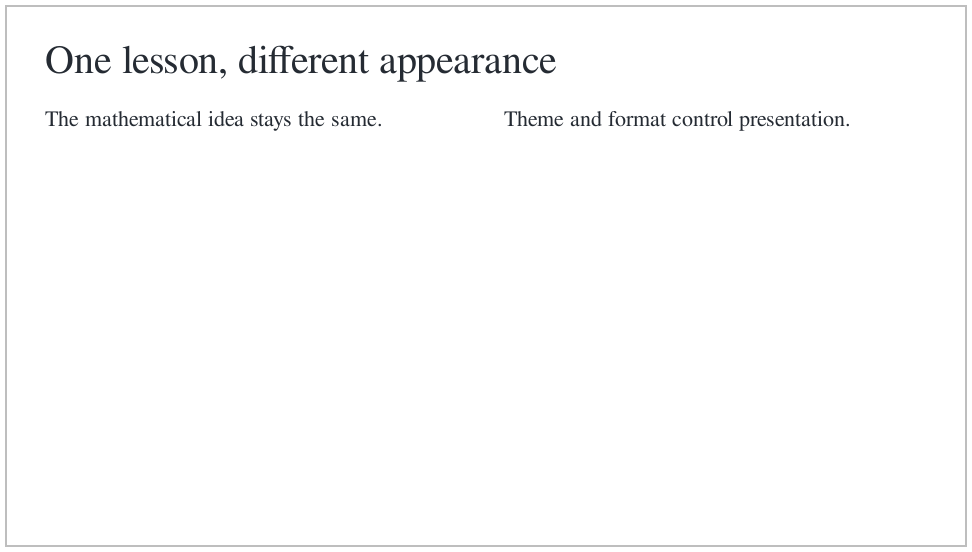
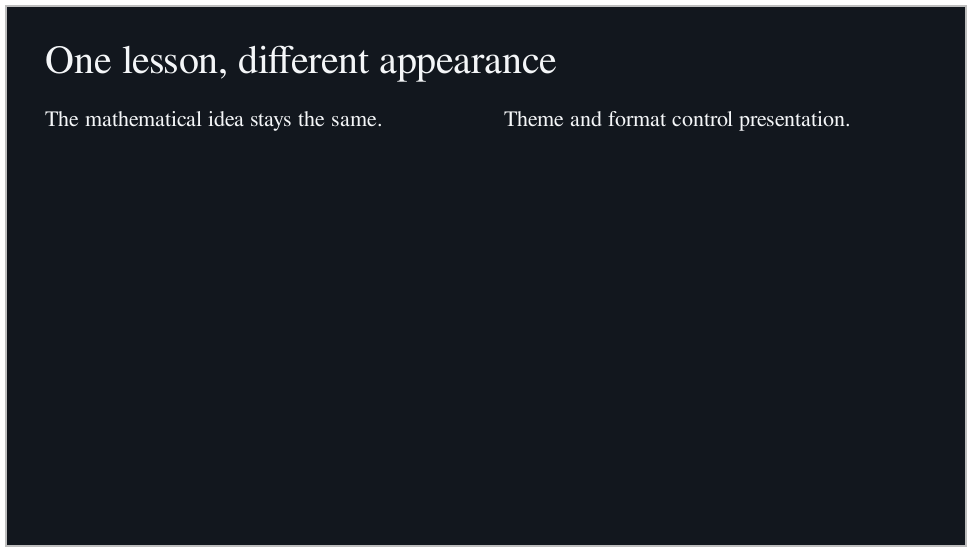
The gallery also keeps a compact side-by-side review of the same idea:
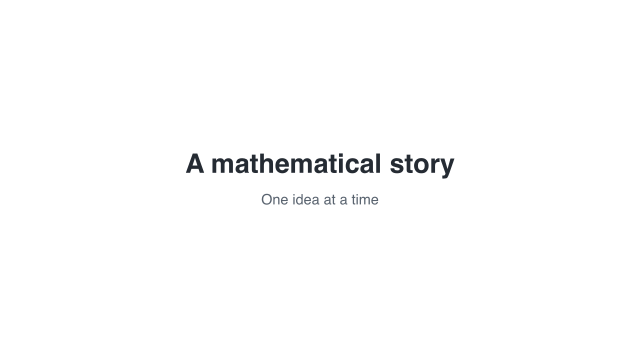 Light theme
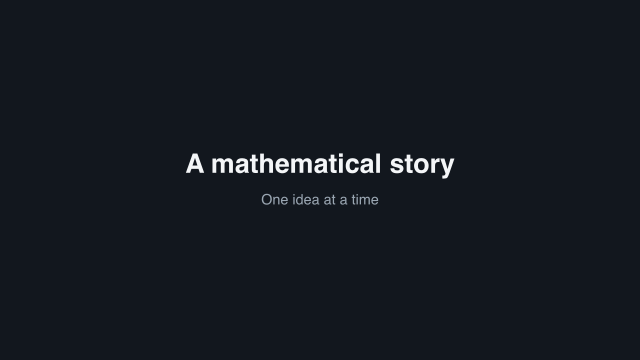 Dark theme
Alternative views of the same content, not consecutive frames.
An explicit theme on an individual slide takes precedence over the storyboard’s theme. Use that only when the card should deliberately keep its own appearance.
32.1 Format is not resolution
A format chooses the canvas shape and size in layout units. widescreen is 16 by 9; portrait is 9 by 16. The other built-ins are standard and square-format.
(define tall-film (storyboard-with-format film portrait))
> (equal? (storyboard-format tall-film) portrait) #t
> (storyboard->pict tall-film #:at 1)
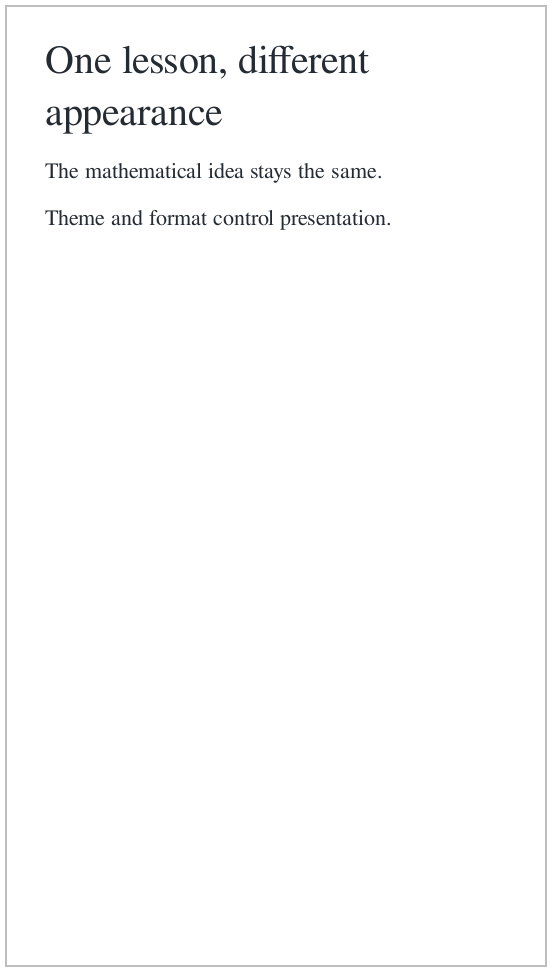
A new shape can change line wrapping and stack columns vertically. Inspect it; a layout cannot fit an unlimited amount of text. Increasing the pixel resolution of the same 16-by-9 format is different: it should not reflow the text.
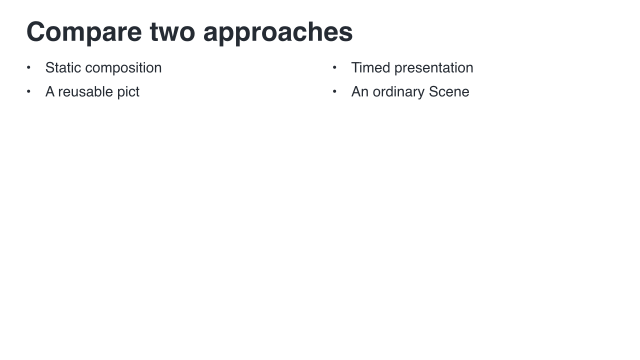 Widescreen: 16 by 9
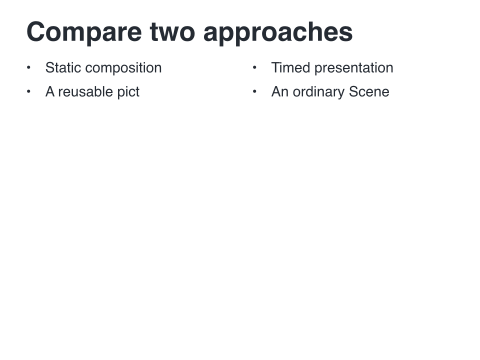 Standard: 12 by 9
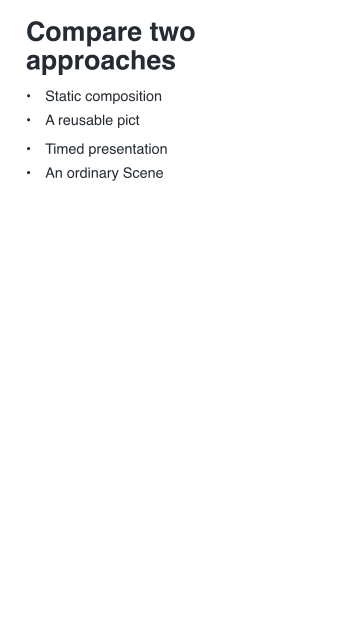 Portrait: 9 by 16
Alternative views of the same content, not consecutive frames.
These three review images use the same 'title+two-column content in widescreen, standard, and portrait. They are alternatives, not consecutive movie frames.
32.2 Choose a text style only when needed
Typography covers properties such as font family, size, and line spacing. A typography role says what the text is for: title, body, label, or caption. The theme supplies the style for that role.
Use the built-in theme first. The complete Use your own theme recipe shows how to replace a title style and widen the margins without restyling every slide. Native colors such as theme-accent name a purpose rather than one fixed RGB value.
Continue with Pace a lesson with narration for pacing and voice-over, or Put an animation inside a slide for an animated figure.