29 Draw a graph
This lesson graphs y=x2/4-1. It needs the Scene and group from the earlier lessons, but no formula typesetter, calculus, or 3D camera. The examples are evaluated while the manual is built. A complete standalone version is "scribblings/examples/first-function-graph.rkt".
29.1 Choose the numbers and the drawing size
An axis range chooses numbers, not output pixels. (axis-range -3 3 1) runs from minus three to three, with a regular tick step of one. The built-in Cartesian axes cross at zero, so each range includes zero. #:x-length and #:y-length choose the lengths of the drawn axes in world units. A numerical unit need not have the same drawn length on both axes.
(require animate) (define coordinates (axes #:id 'coordinates #:x-range (axis-range -3 3 1) #:y-range (axis-range -2 2 1) #:x-length 7 #:y-length 9/2 #:stroke "navy")) (define axes-scene (scene-add (make-scene) coordinates))
Before adding a graph, look at the coordinate system itself:
> (scene->pict axes-scene 0)
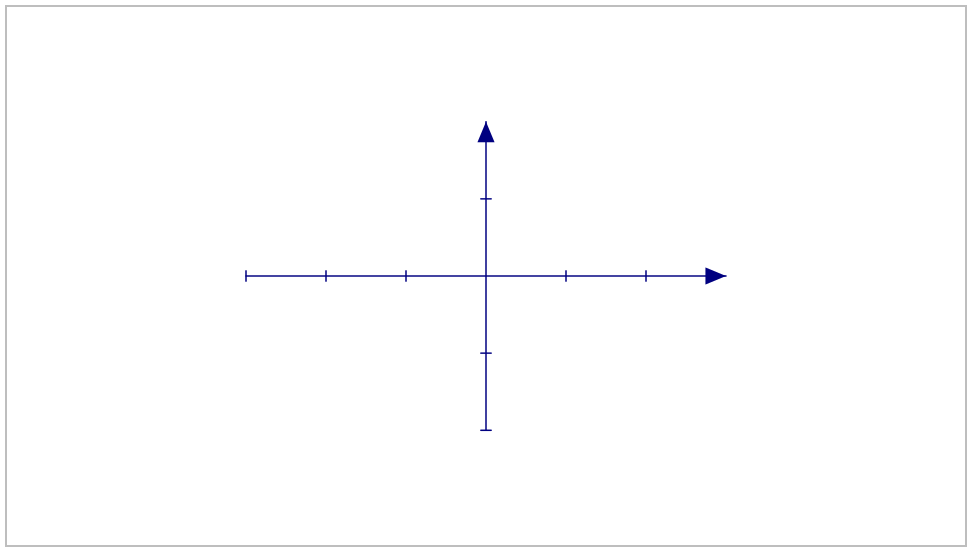
The x range spans six numerical units and is drawn seven world units wide. The y range spans four numerical units and is drawn 4.5 world units high. Tick marks do not by themselves add text labels. The coordinate-decoration reference describes how to add numeric labels when the picture needs them.
29.2 Turn a function into a curve
function-graph evaluates a one-argument numerical function over the chosen x range. It stores the resulting path geometry: sampled points and smooth cubic segments that will be drawn. Smooth interpolation is the default for mathematical function graphs. A larger sample count gives the interpolator more information; it is not a proof of accuracy.
(define curve (function-graph coordinates (lambda (x) (- (/ (* x x) 4) 1)) #:id 'curve #:sample-count 81 #:stroke "crimson" #:stroke-width 3))
To inspect the stored result without animating it, put the axes and curve in a temporary still Scene:
> (scene->pict (scene-add (make-scene) coordinates curve) 0)
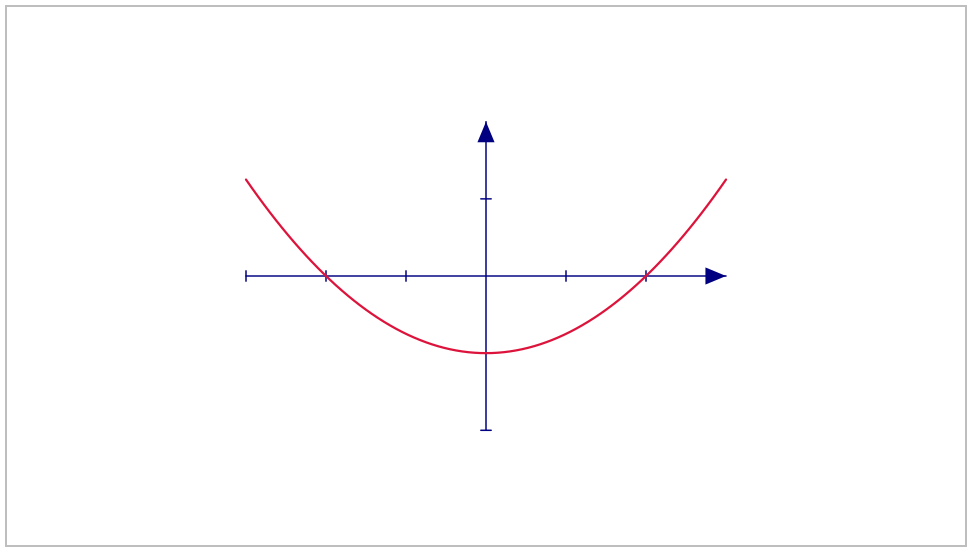
Try 21 samples instead of 81. The interpolation has less information about the function, but its later two-second reveal still takes two seconds. Increasing video frame rate does not add mathematical sample points to this stored curve.
This step constructs the curve. It does not play an animation and does not call the function again for every movie frame. A later edit to the function requires constructing a new graph. Use #:interpolation 'linear when you specifically want straight sample-to-sample segments; interpolation does not change animation speed.
29.3 Draw the curve over time
create introduces a path Visual by revealing its geometry. The curve must not already be present. Put the axes into the starting Scene, then reveal the curve and hold the finished diagram:
(define drawing (scene-play axes-scene (create curve) #:duration 2)) (define film (scene-wait drawing 1))
The durations below are checked during the documentation build:
> (scene-duration drawing) 2
> (scene-duration film) 3
 t = 0 s
 t = 1/2 s
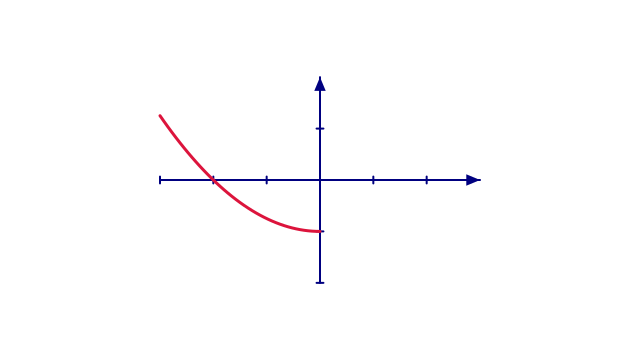 t = 1 s
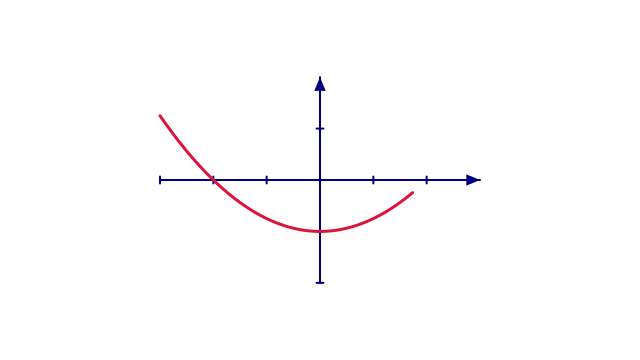 t = 3/2 s
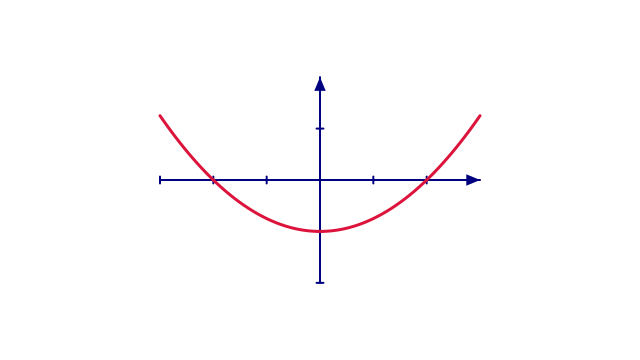 t = 2 s
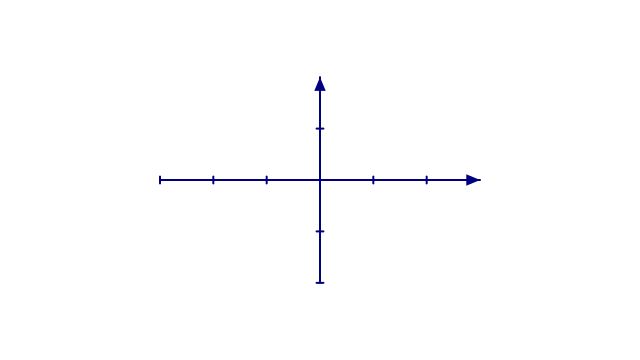
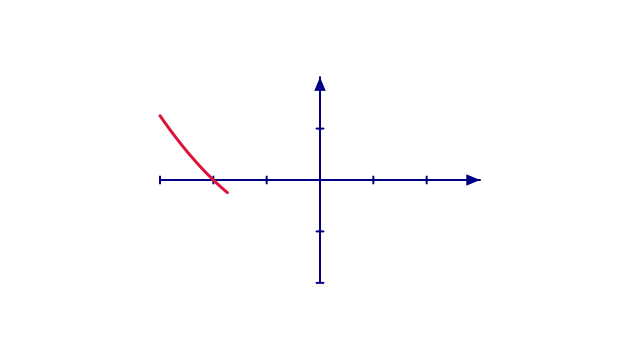
The stored curve is revealed from left to right; the function is not evaluated per frame.
The two-second reveal is followed by a one-second hold. Revealing a curve is different from moving a point along it, and from changing the function itself.
29.4 Keep the graph with its axes
The graph captured the axes’ placement when it was constructed. It is not a live dependency on the coordinates variable. Moving only the axes later would leave the graph behind. To move the finished diagram as one unit, group the axes and curve:
(define diagram (group (list coordinates curve) #:id 'diagram)) (define moving-diagram (scene-play (scene-add (make-scene) diagram) (move-to 'diagram (vec2 2 0)) #:duration 2))
> (scene-duration moving-diagram) 2
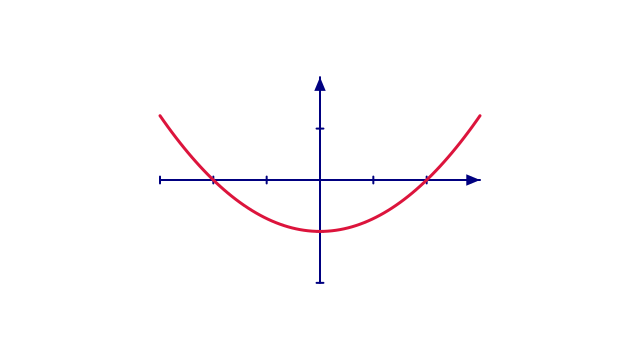 t = 0 s
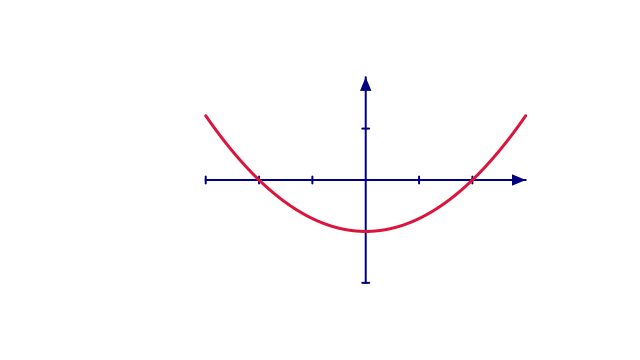 t = 1 s
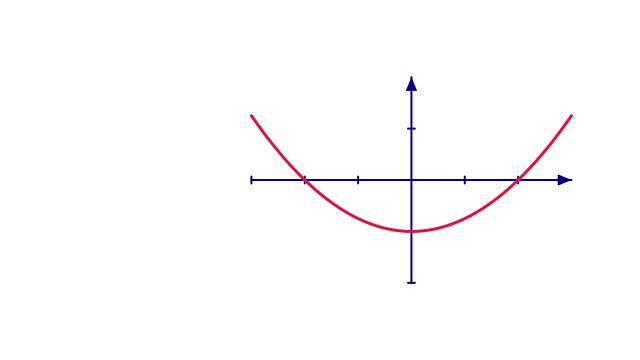 t = 2 s
The axes and curve travel together because they belong to one group.
Here is the completed moved diagram:
> (scene->pict moving-diagram 2)
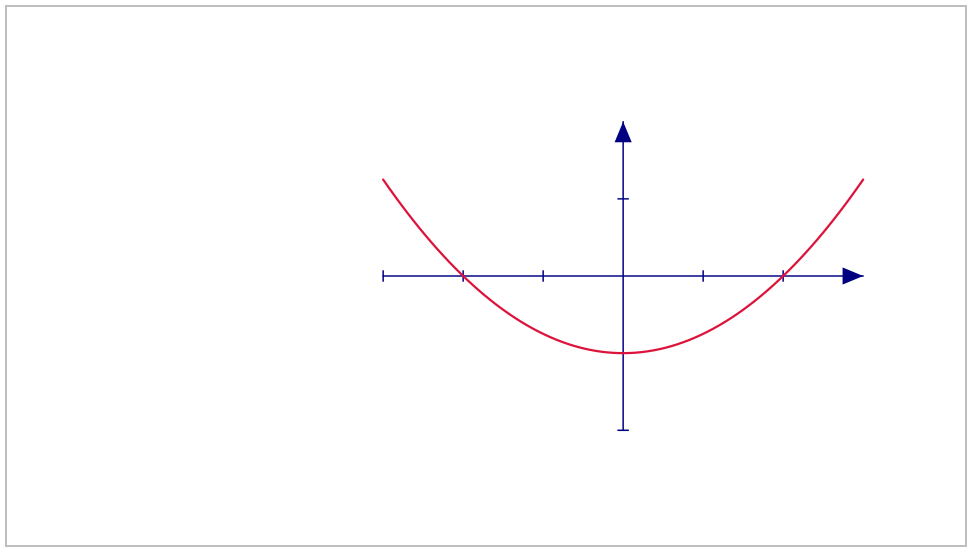
This alternative starts with the complete curve already present. It does not append to the reveal above. To move a diagram after a reveal, plan its shared container and targeting before building the animation; the general grouping and path rules are the same as in Build a small scene.
29.5 Choose the next step
Use parametric-curve when one parameter produces both coordinates. Use data-plot for an ordered list of observations. Look up those APIs in Geometry, or return to the complete plotting example in the Cookbook. Discontinuities and clipping require explicit choices; the simple parabola above does not demonstrate those cases.
For titles, explanatory text, and a consistent page layout around a diagram, continue with Make a slide and give it time.